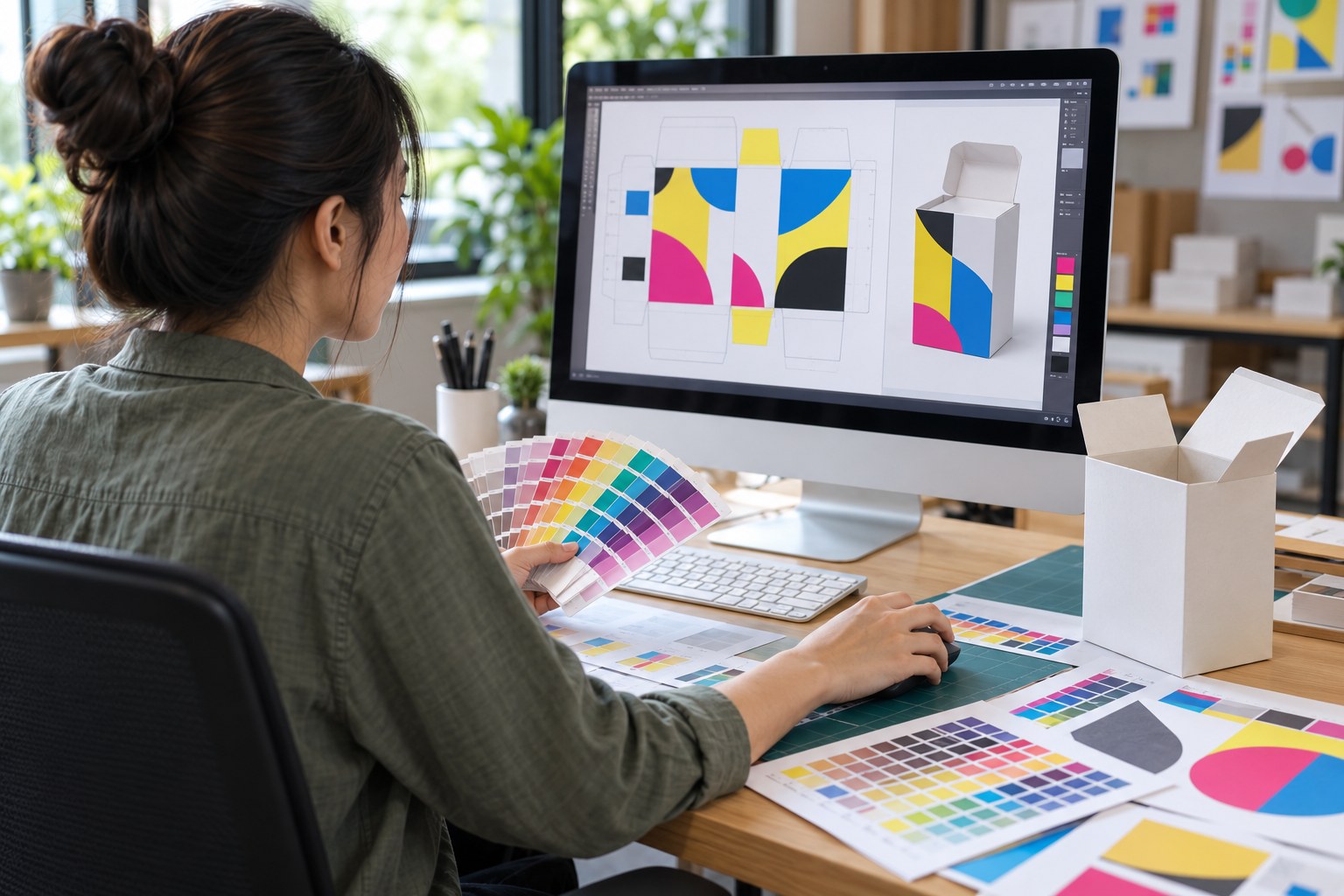
Print-ready artwork reduces revisions and makes discussions with your printer clearer. A file that looks good on screen may still contain low-resolution images, missing fonts or insufficient bleed. Check it step by step before production, following the requirements of the printer handling the job.
1. Use approved dimensions and dielines
For boxes, place graphics on the dieline confirmed by the manufacturer. For labels, specify the width, height and cutting shape. Check the units and scale before starting. Changing the size later can affect images, text and finishing positions.
2. Understand CMYK and screen colour
Screens create colour with light, while printing uses ink on a material, so the results can differ. Discuss colour mode and profiles with your printer before converting files. Identify spot colours or brand colours separately and agree how colour will be approved. Converting to CMYK alone does not guarantee an exact match to every screen colour.
3. Bleed and safe areas are different
Bleed is the image or background extending beyond the cut line to allow for cutting variation. A safe area keeps important text and details inside the cut line; box folds also need attention. Confirm the required distances for your project with the printer rather than applying one number to every job.
Enlarging the document boundary without extending the image or background does not create actual bleed. Check every side, including the back and folding flaps.
4. Check images, fonts and linked files
Check image resolution at the final printed size. Enlarging a small image does not add detail. Supply linked images or embed them as agreed. Check fonts and licensing, including PDF font embedding or outlining when needed. Always keep an original version with editable text.
5. Separate dielines and decorative finishes
Identify cutting lines, crease lines, foil and embossing using layers or separate colours according to the printer’s instructions. Check which elements are printed and which are production guides. Do not delete or merge lines by guesswork before discussing them with the file recipient.
6. Export a PDF and check it again
Ask for the required PDF type or preset. Open the exported PDF to check dimensions, pages, fonts, images and colour separations. Checking only the source file is insufficient because export settings can change some details.
Export reference: Adobe Illustrator: Adobe PDF options, Marks and Bleed.
Checklist before sending
- Dimensions and dieline are the approved version.
- Images and backgrounds include the specified bleed.
- Important text is clear of cut and fold lines.
- Fonts, linked images and product information have been checked.
- Spot colours and decorative finishes are clearly identified.
- File names and versions distinguish the final design from old drafts.
- The final PDF has been reopened and checked, with an approver identified.
Frequently asked questions
Can I send only a JPG?
It depends on the project and resolution. A flattened image can make text changes and finishing separations difficult. Ask the printer before preparing your files.
Do I need a proof?
Agree on checking and approval before production, especially when colour, size and positioning matter. Different types of samples confirm different details.
Send your project details to Phunporn Printing
If you are unsure what to send, explain the project type, dimensions and files available. Call 096-329-5356 or contact Phunporn Printing. See our guides to ordering cosmetic boxes and requesting a quotation.